Using MCP to Compare Figma Designs Against Your Frontend
Set up Figma, Playwright, and Chrome extension MCP servers in Claude Code to automatically compare your live frontend against Figma designs.
Claude Code can read your Figma designs and control a browser. Combine both via MCP, and you get a QA assistant that compares your live implementation against the design — spacing, colors, typography, layout, component by component.
What You Need
- Claude Code CLI installed and working
- A Figma account (any plan works with the remote MCP server)
- A running frontend app (local dev server is fine)
- One of these browser control tools:
- Playwright MCP — headless browser automation
- Chrome Extension MCP (beta) — controls your actual Chrome browser
You only need one browser control method. Playwright is better for CI and headless testing. The Chrome extension is better for interactive debugging and inspecting pages you're already looking at.
Setting Up Figma MCP
Add the Figma MCP server so Claude Code can read your design files.
1. Add the remote server:
claude mcp add --scope user --transport http figma https://mcp.figma.com/mcp2. Run /mcp in Claude Code and authenticate with your Figma account when prompted.
You should see figma listed with tools like get_design_context, get_metadata, and get_screenshot.
Option A: Playwright MCP
Playwright MCP gives Claude Code a headless (or headed) browser it can control programmatically. It navigates pages, clicks elements, takes screenshots, and reads page structure through accessibility snapshots. Runs its own browser instance, so it works in CI and doesn't require Chrome.
1. Add Playwright MCP:
claude mcp add --transport stdio playwright -- npx @playwright/mcp@latest2. Run /mcp and look for playwright with tools like browser_navigate, browser_screenshot, browser_click, etc.
Add --headed at the end of the command to watch the browser in real time. Useful for debugging,
but slower. Default headless mode is better for automated checks.
Option B: Chrome Extension MCP (beta)
Chrome integration lets Claude Code control your actual Chrome browser — with your logged-in sessions, extensions, and DevTools. Browser actions run in a visible Chrome window in real time. No JSON config needed.
1. Install the Claude in Chrome extension from the Chrome Web Store.
2. Start Claude Code with the --chrome flag, or run /chrome inside an existing session:
claude --chrome3. Run /chrome to check the connection status. You can also enable Chrome by default so you don't need the flag every time.
When to prefer the Chrome extension over Playwright:
- You need to test authenticated pages (already logged in via Chrome)
- You want to inspect the same page you're looking at
- You're debugging layout issues interactively
- You need access to console logs, network requests, or DOM state
Running a Comparison
Give Claude a Figma link and your app URL, and ask it to compare.
Compare this Figma component against the live implementation:

Figma: https://www.figma.com/design/ABC123/MyApp?node-id=85-2048
Live: http://localhost:3000/pricing

Also check responsive behavior at 768px and 1024px.

Give me feedback and create tasks for anything that doesn't match.
You don't need to tell Claude what to check — it reads the Figma frame and figures out what to compare on its own.
Claude will:
- Fetch the Figma frame data and extract design properties
- Navigate to your app in the browser
- Take snapshots and read the page structure
- Compare the two and report differences
- Create tasks for each mismatch
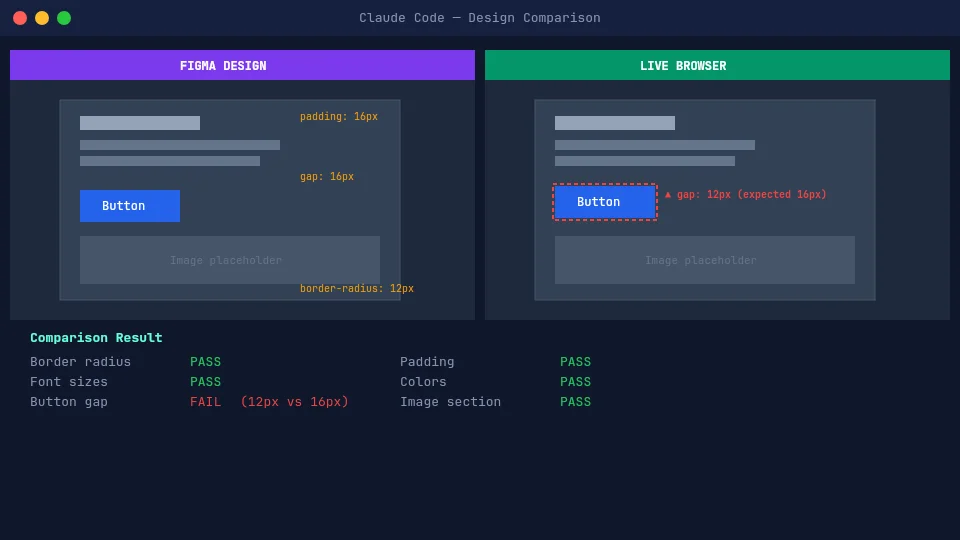
You get back feedback like:
Pricing Card — found 3 issues out of 9 checks:

1. Box shadow is missing on hover state. The Figma design shows
   a 0 4px 12px rgba(0,0,0,0.1) shadow on hover, but the
   implementation has no hover shadow.

2. Feature list gap is 12px, Figma design shows 16px.

3. At 1024px, cards are 33% width with no max-width constraint.
   Figma design shows max-width of 360px per card.

Everything else matches — border radius, font sizes, button
styles, colors, and 768px responsive layout all look correct.

I've created 3 tasks to fix these issues.
Claude creates the tasks in the same session, so you can start fixing them right away — or hand them off to another Claude Code session.
This works even better with agent teams. Have one agent do the QA review and create tasks, then spawn teammates to fix each issue in parallel.
Tips for Better Results
- Reference specific Figma frames — don't link the whole file. Use a link to a specific section to point at the component you want checked.
- One component at a time — a full-page comparison will miss details that a per-component check catches.
- Mention breakpoints explicitly — responsive behavior isn't always visible from a single Figma frame. If you need viewport checks, specify the breakpoints (e.g., 1440px, 768px, 375px).
- Let Claude decide what to check — don't list properties manually. Claude extracts what it needs from the Figma design. Only add instructions for things Figma can't express (interaction states, responsive behavior, dynamic content).
- Add project context via CLAUDE.md — if your project uses a design system, spacing scale, or color tokens, document them in your
CLAUDE.md. Claude will use them in every QA session.
Create a skill for this. Add a markdown file to
.claude/skills/ with instructions like: "Read the Figma frame, open the URL, compare everything,
and create tasks for any issues." Then invoke it with /qa — every session is just a Figma link
and a URL.
Limitations
- Not pixel-perfect — Claude compares structural and stylistic properties, not literal pixel diffs. It catches spacing, color, and layout issues well, but won't detect anti-aliasing differences or sub-pixel rendering.
- Animation and interaction states — Claude can check hover states if you tell it to trigger them, but complex animations, transitions, and scroll-based interactions are hard to verify.
- Dynamic content — if your component renders different content based on API data, Claude only sees what's currently rendered. Mock your data for consistent comparisons.
- Performance — each comparison involves multiple MCP calls (Figma fetch, navigation, screenshots, DOM inspection). Expect each check to take 30-60 seconds.
This doesn't replace visual regression tools like Percy, Chromatic, or Playwright's screenshot comparison — use those in CI. Claude Code QA is for exploratory checks, design reviews, and catching issues before they reach the pipeline.
Further Reading
- Introducing the Model Context Protocol — Anthropic's announcement of MCP and the problem it solves.
- MCP: Giving Your AI Agent the Right Context — a deep dive into how MCP works and why it matters for AI-powered workflows.
Related Posts
How I Use Different AI Models for Different Development Tasks
Why picking one AI model for everything is like using a chef's knife to open cans. A practical breakdown of when I reach for Opus, Sonnet, Haiku, and other tools.
5 Claude Code Features That Will Boost Your Workflow
opusplan, 1M context windows, agent teams, fast mode, and effort levels — many arriving with Opus 4.6, these features make Claude Code a much sharper tool.